
Using your Instagram highlights is a great way to give your followers a quick look into the most significant pieces of your business. It’s also one more way to brand your business online. There’s a simple and free way to create highlight covers that match your brand look and feel.
Oh, and you don’t have to post your covers in your story and annoy your followers with your “OMG, I’m sorry. Tap through the next slides I’m changing my covers lol.” You’re welcome.
Canva is a great app for creating covers with very little graphic design experience. Even those with graphics experience will find this is a pretty handy tool for on the go creating! You can create a free account by downloading the Canva app or visiting Canva.com
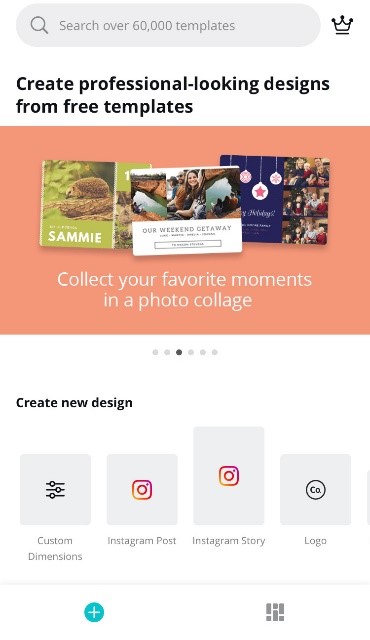
Choose “Instagram Story” in the “Create New Design” section
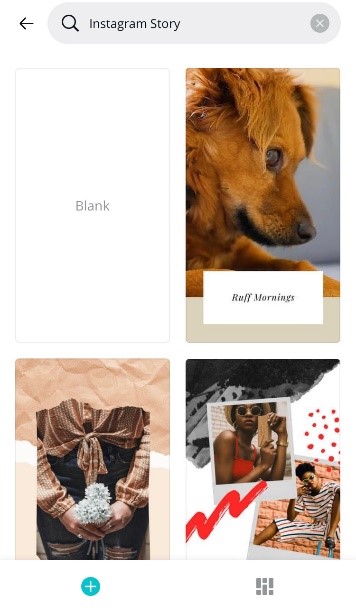
Here you can choose from already existing templates or a blank story (It’s probably best to choose a blank template as there aren’t currently options geared towards Highlight covers)
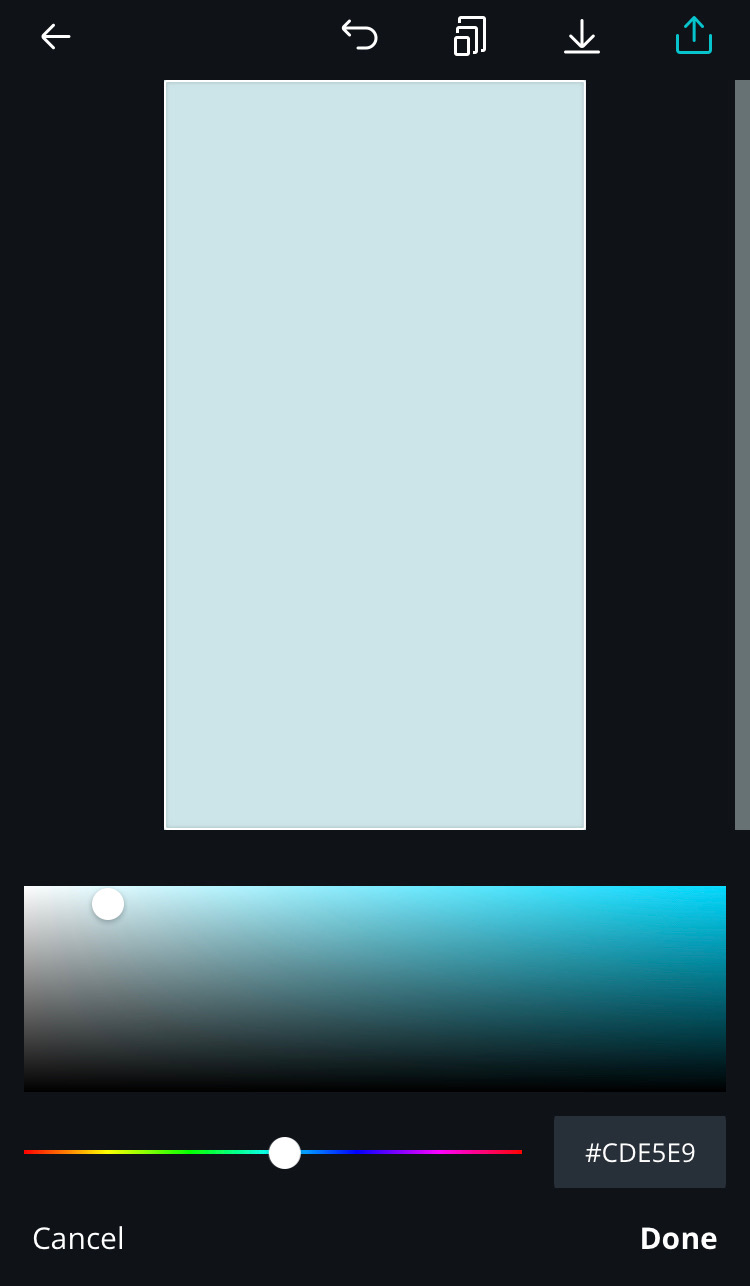
Once you’ve chosen your template, you can use existing colors for the background, or use your brand color code to set the background
Next, use the “Shapes” or “Illustrations” section to explore icons available through Canva. You can also choose “Logos” to upload your own graphics, or ones you’ve downloaded from another source
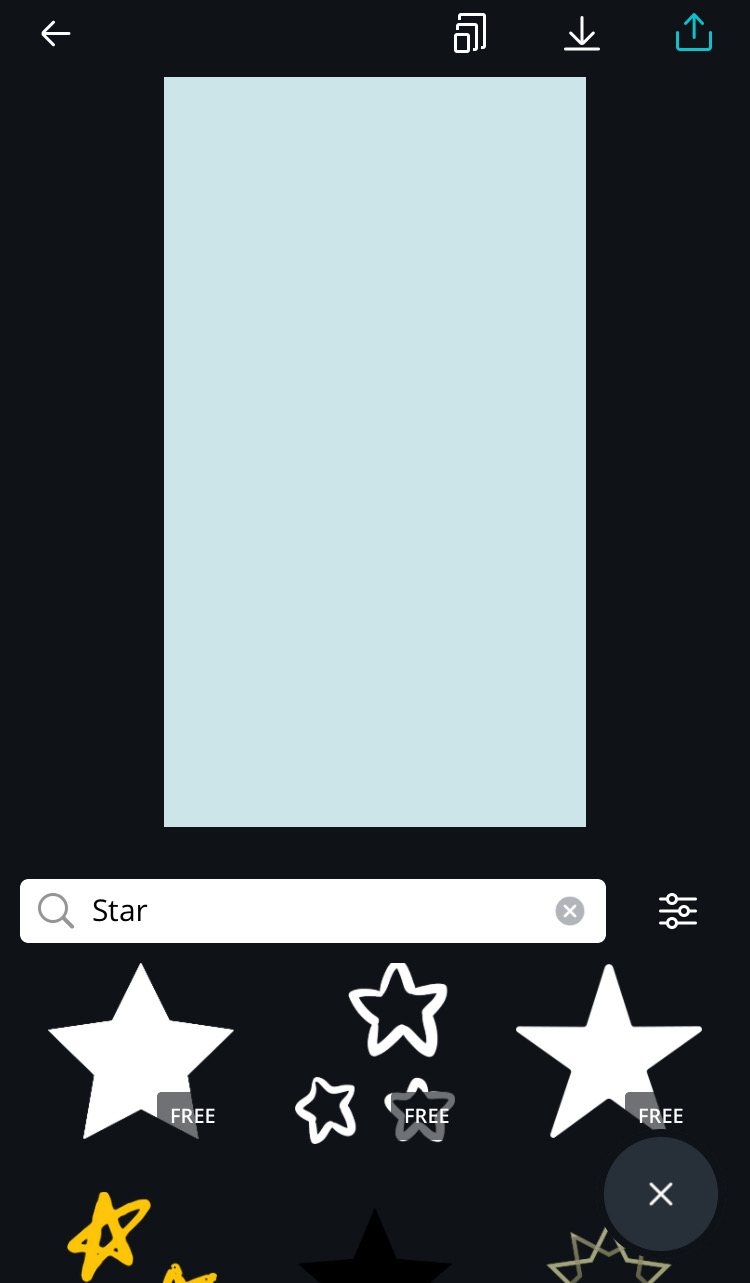
You can change the colors of elements of the illustrations to match your brand, or to stand out better on your page.
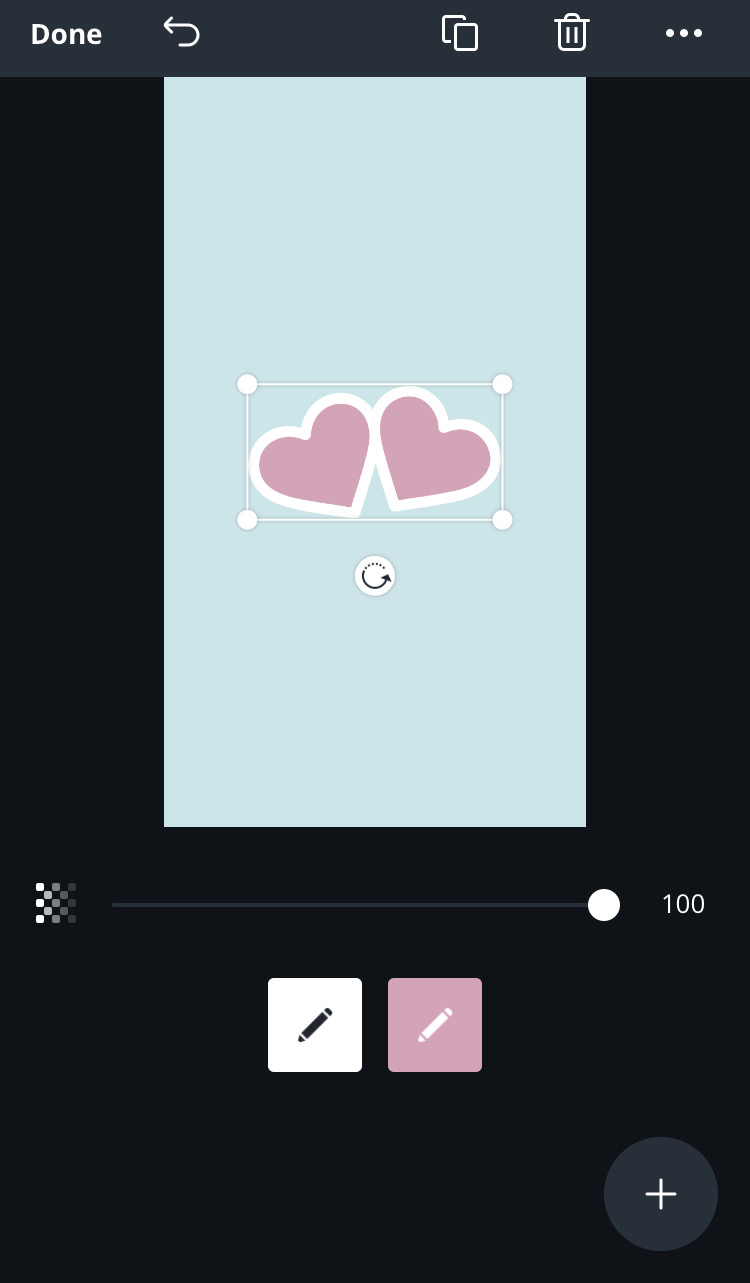
You can also layer text over any graphics that you choose. There are many existing fonts in the Canva library, so choosing one that resonates with your brand should not be too difficult
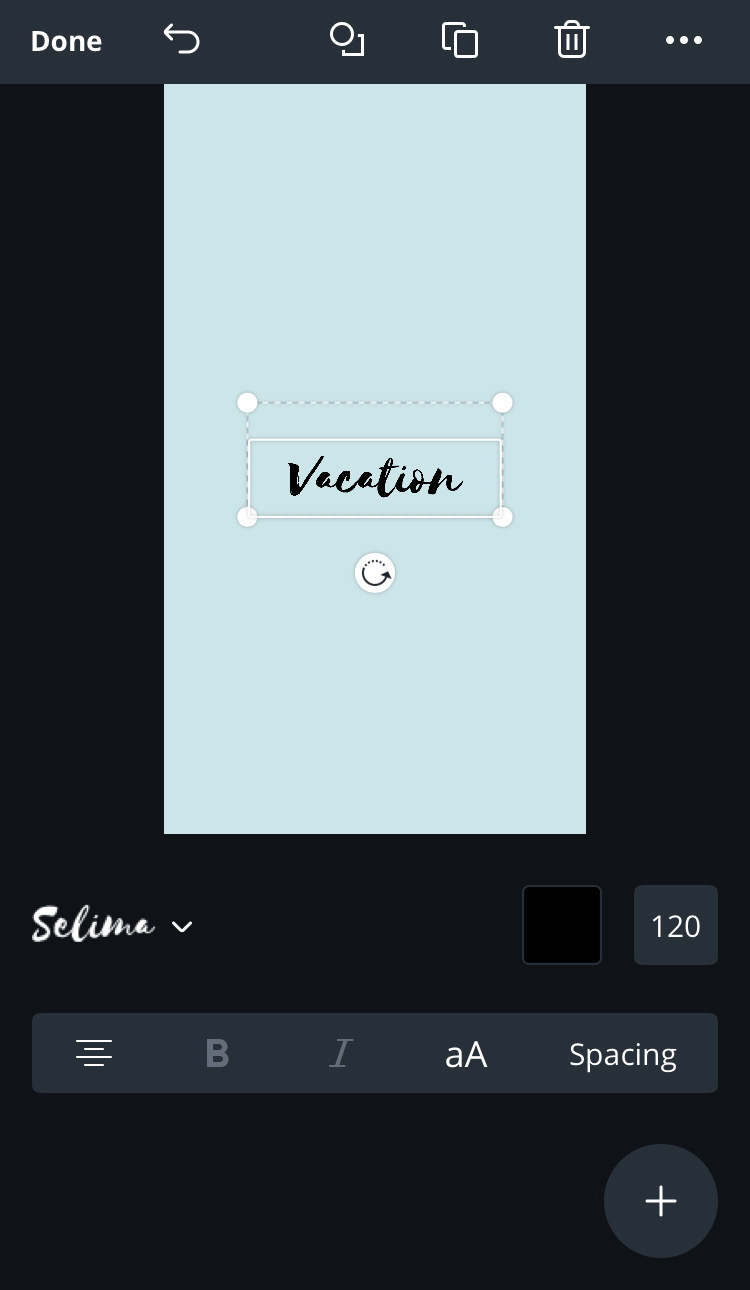
Align the icon (and text), ensure it is the color you want and click “Done” to save.
Now, log into your Instagram and go to your profile. If you already have highlights saved, click on one to open the highlight
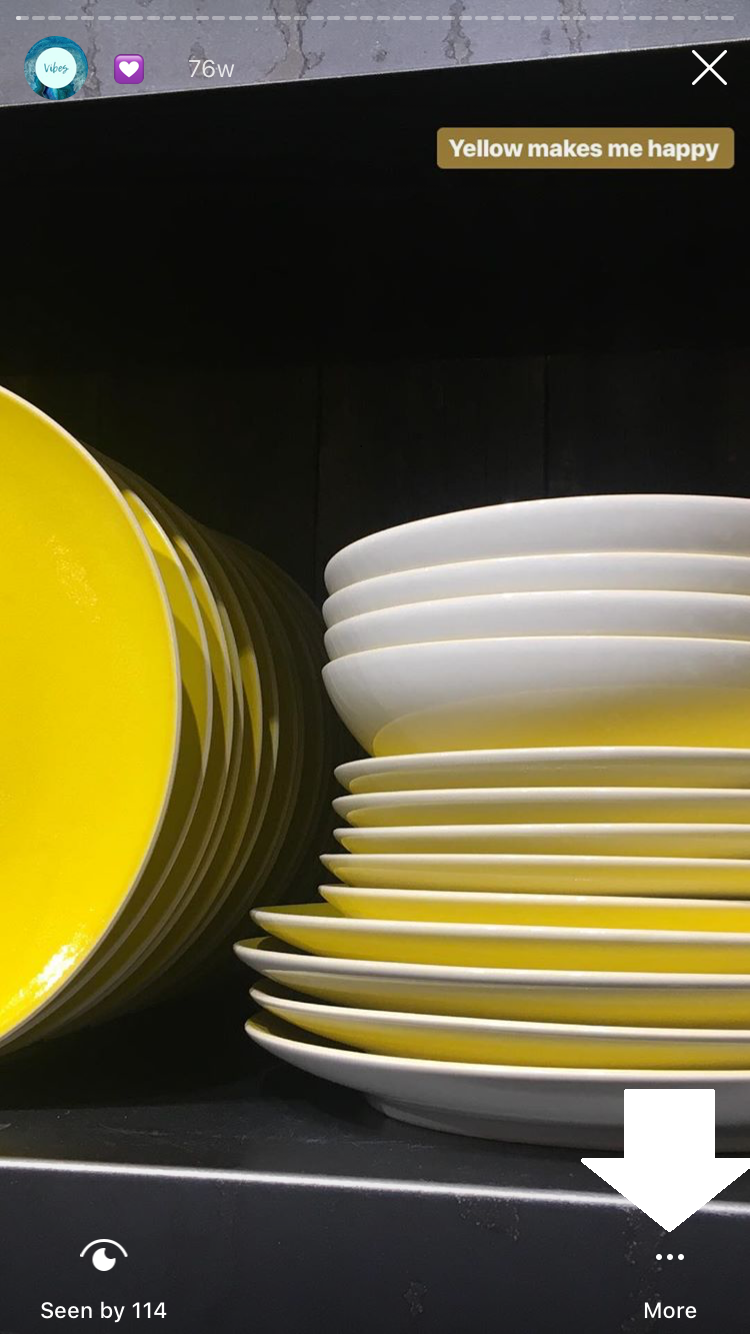
Tap the right bottom corner with “…” and choose “Edit Highlight”
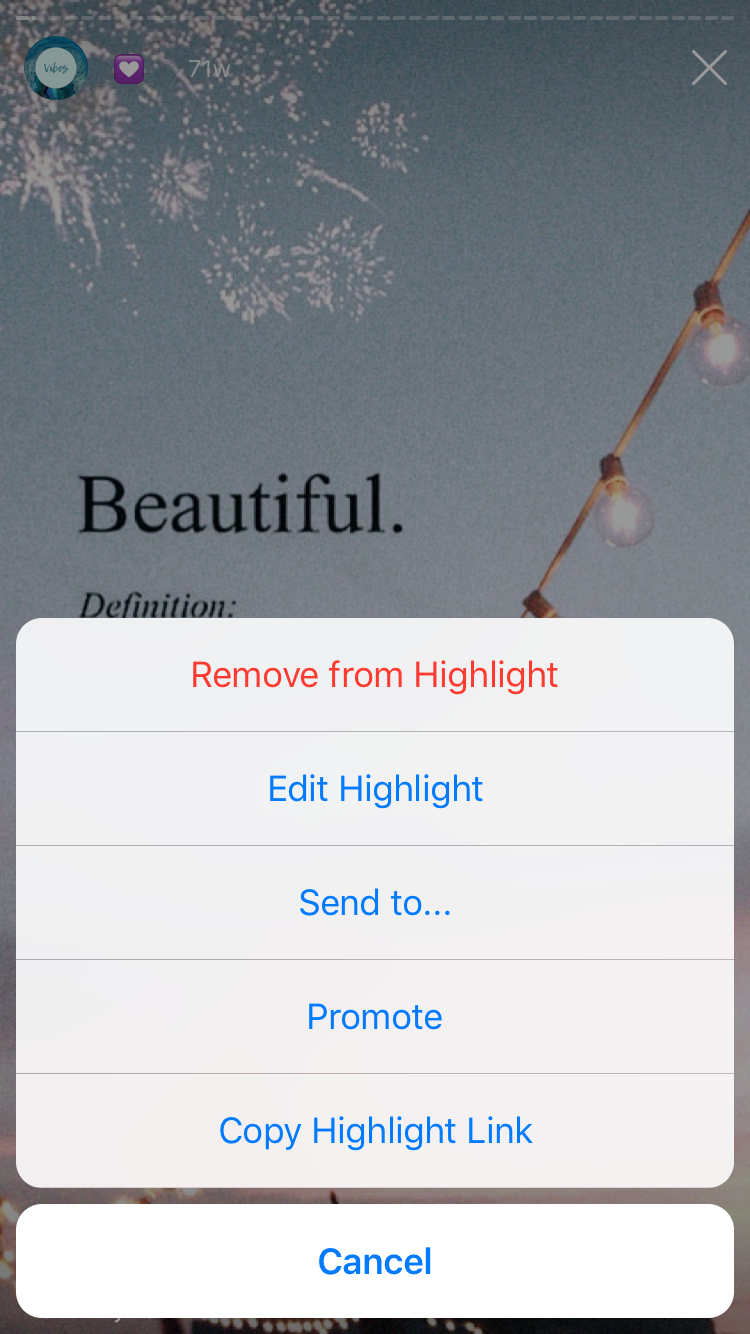
This will bring you to the highlight contents and at the top is the current cover, and below it “Edit Cover”
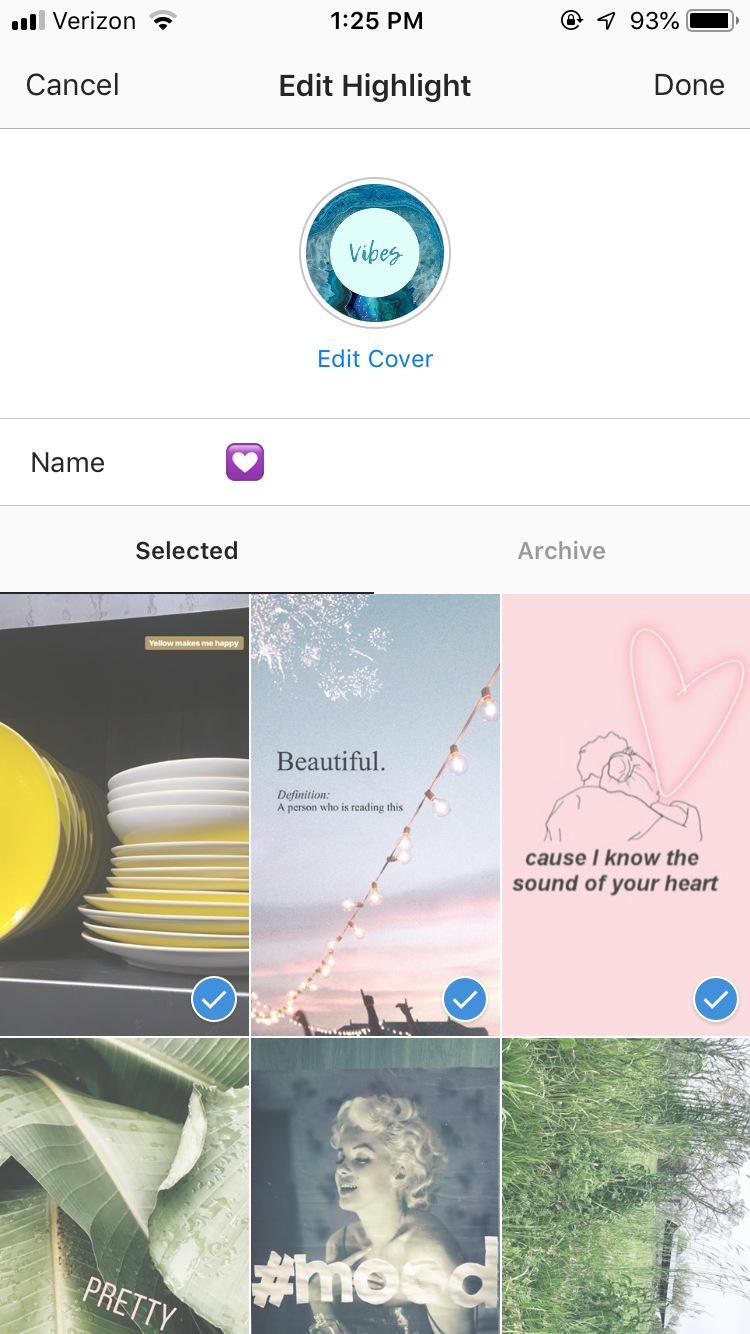
You never have to be that person who says “Sorry for posting to stories with all these graphics, just updating my highlight covers” because you can upload any image right to the cover. Click the black and white image icon to open your camera roll on your phone. Choose your saved Canva story from those images.
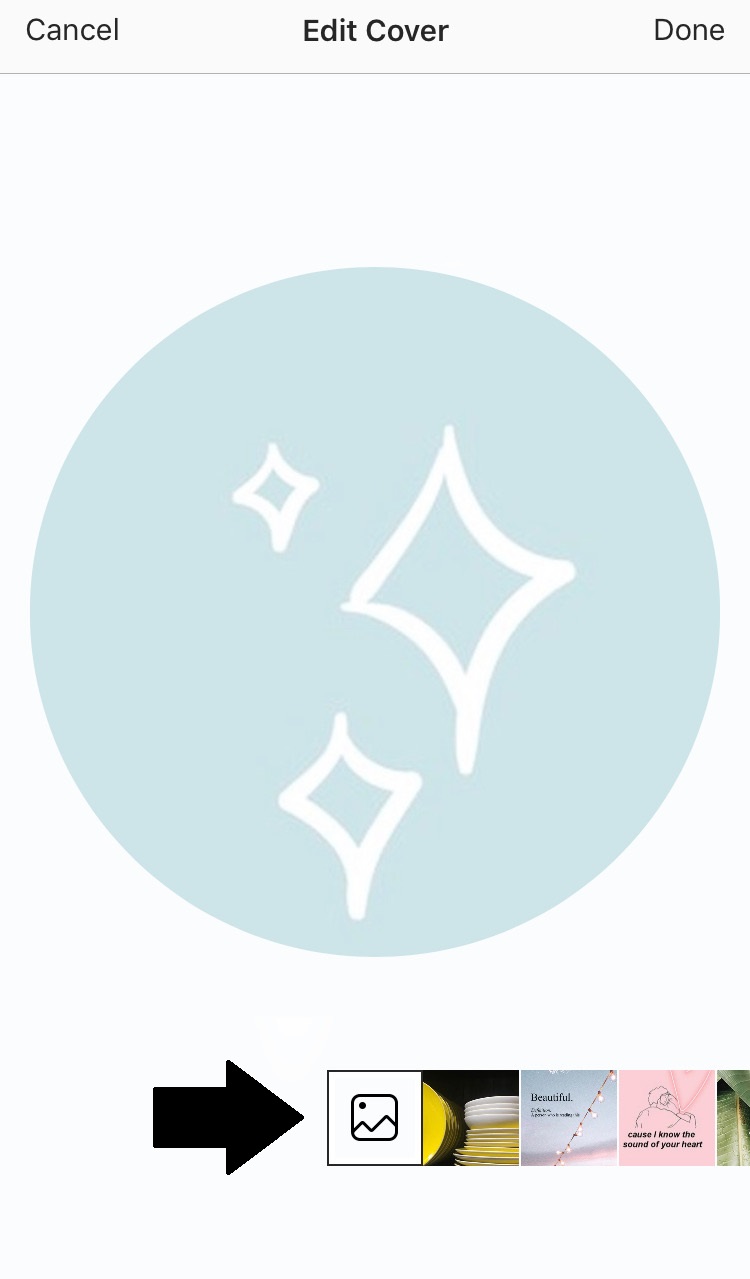
Repeat with all corresponding cover art and admire your fully branded profile!
 MACK GUIDED